
How to generate video from an image: a practical Camai guide (18+)
Step-by-step guidance for turning a still into a short AI video with Camai’s image-to-video tools at camai.click—prompts, uploads, downloads, and adult disclaimers.
- tutorial
- image-to-video
- guide
- Camai
- how-to
- 18+
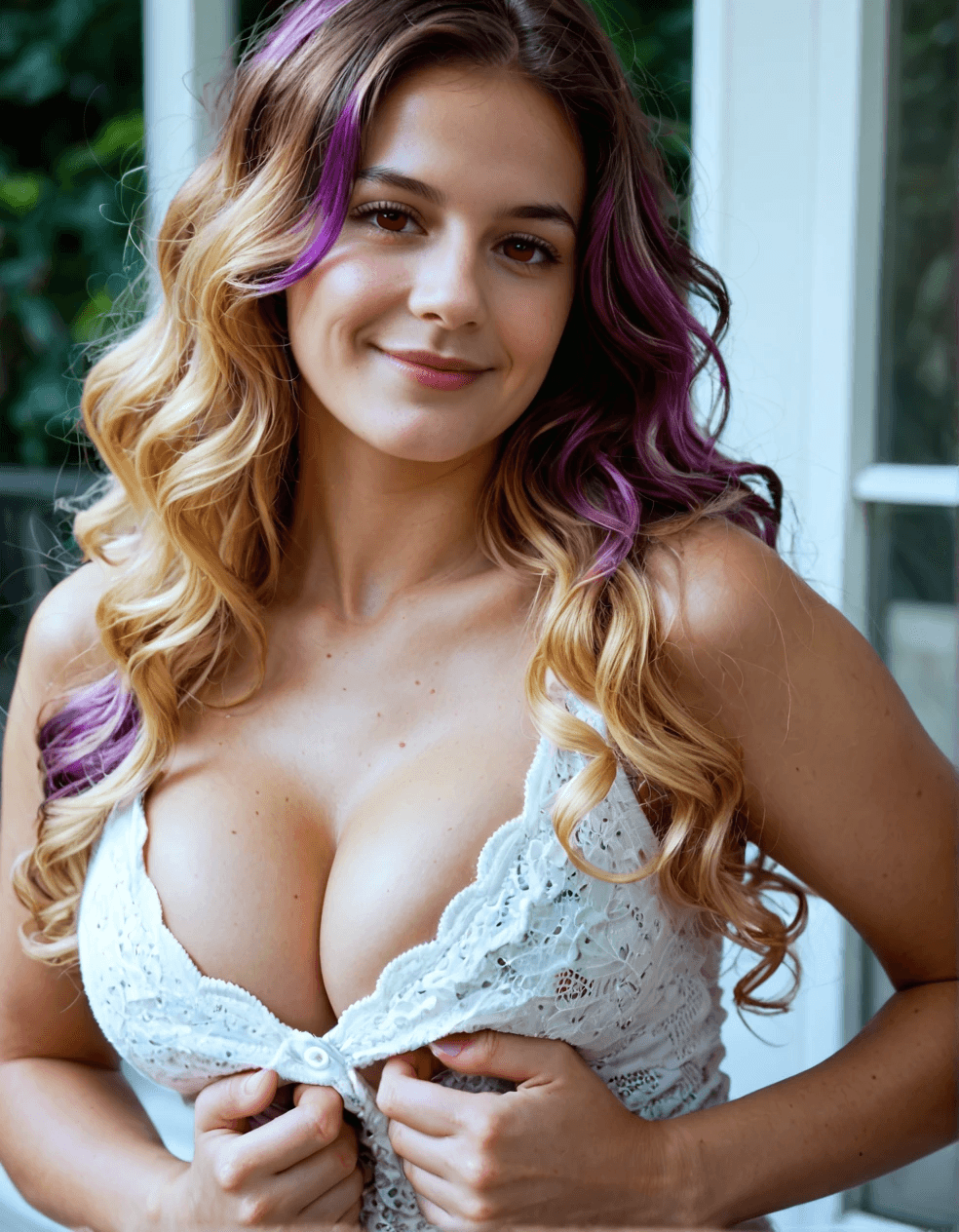
Generating video from a single image is one of the most requested workflows in modern AI studios. You upload a still, describe what should move, and receive a short clip. Camai at camai.click is built for adults who want that workflow without exposing a public gallery. This guide walks through the practical steps, common pitfalls, and how to get the best results while promoting Camai as your home base for adult AI generation.
What you need before you start
You will need a verified adult account (18+), a clear source image, and a realistic idea of runtime. Image-to-video is heavier than still generation; queues and GPU availability matter. Read Camai’s FAQ for retention rules—clips may appear on your profile for a limited window so you can download them. Plan to save locally if you want a permanent archive.
- Create an account at camai.click and confirm you are 18 or older.
- Prepare a still with good lighting and a clear subject; avoid tiny faces.
- Write a short motion prompt: camera move, subject motion, and mood.
- Open the Image → video tool from the navigation after you sign in.
Upload, prompt, and generate
Upload your image in the supported format. Camai’s form surfaces presets and prompt fields that map to the underlying pipeline—use them instead of inventing cryptic keywords. Describe what should change over time: for example, “slow zoom in, subtle hair movement, cinematic lighting.” Avoid stuffing ten conflicting ideas into one line. If the first result is weak, iterate on a single variable—either the prompt or the still—before you change everything at once.
When generation completes, preview the clip in the browser. If you like it, download immediately. Camai’s privacy stance means you should not rely on the cloud to remember every asset. If you need to create variations, duplicate the prompt with a new seed or a small edit to the still in image-to-image first, then run image-to-video again.
Troubleshooting quality issues
Blurry faces often mean the input resolution was too low or the subject was too small in frame. Try a tighter crop. Shimmering backgrounds can mean the motion prompt was too aggressive relative to the model’s capacity—dial back camera motion. Color shifts between frames sometimes improve with a cleaner still or a slightly shorter clip length. Camai’s community channels (such as Telegram) may post updates when presets change—follow those links from the site footer.
SEO, sharing, and labeling
If you are a creator who blogs tutorials, link to Camai with descriptive anchor text (“Camai image-to-video studio”) and disclose that your sample clips are AI-generated. That helps readers and search engines understand the page. GEO-wise, specify your language and audience if you translate the guide. Camai’s canonical URLs live under camai.click; use HTTPS links and avoid duplicate content across domains.
Image-to-video is one of the most exciting capabilities in adult AI, but it is still software: you are responsible for the outputs, the prompts, and the legality of what you publish. Camai is designed to be a private, 18+ studio for consensual fantasy—use it with that frame in mind, download what you want to keep, and iterate until your clips match your creative vision.